Thursday, November 7, 2013

CentOS 6.3 Device eth0 does not seem to be present (Minimal non-cloned setup)

In my situation, I changed the network adapter configuration of my hypervisor after the installation of CentOS. What happened in this case is that the old interface eth0 no longer existed but a new one called eth1 did.
ls /sys/class/net
eth1 lo
I changed the network config /etc/sysconfig/network-scripts/ifcfg-eth0 to use DEVICE=eth1 and it worked again.

Tuesday, October 8, 2013

Red Hat 6 Installation Guide – RHEL 6 Install Screenshots

This is Red Hat 6 RHEL (Red Hat Enterprise Linux) installation guide, step-by-step walkthrough with screenshots. Current version of Red Hat 6 is Beta, but also this RHEL 6 Beta version looks very stable and good OS, so that’s why I decided to write this RHEL 6 Installation guide.

The Red Hat Enterprise Linux 6 Beta is available on the following architectures:

  • i386
  • AMD64/Intel64
  • System z
  • IBM Power (64-bit)
Download Red Hat 6 Beta DVD images here.

Some of the many improvements and new features that are included in Red Hat Enterprise Linux 6

  • Power management – tickless kernel and improvements through the application stack to reduce wakeups, power consumption measurement by Powertop, Power Management (ASPM, ALPM), and adaptive system tuning by Tuned, all enhance more efficient system power usage.
  • Next generation networking – comprehensive IPv6 support (NFS 4, CIFS, mobile support [RFC 3775], ISATAP support), FCoE, iSCSI, and a new and improved mac 802.11 wireless stack.
  • Scalable filesystems – ext4 file system provides support for larger file sizes and significantly reduces repair times over ext3. XFS® is a high-performance file system that supports extremely large files and is optimized for large data transfers.
  • Virtualization – KVM includes performance improvements and new features, sVirt protects the guest and host from unauthorized access, SR-IOV and NPIV deliver high-performance virtual use of physical devices, and libvirt leverages kernel resource management functionality.
  • Enterprise security enhancement – SELinux includes improved ease of use, application sandboxing, and significantly increased coverage of system services, while SSSD provides unified access to identity and authentication services as well as caching for off-line use.
  • Development and runtime support – SystemTap improvements, ABRT is a new framework for simple collection and reporting of bug information, and improvements are made to GCC (version 4.4.3), glibc (version 2.11.1), and GDB (version 7.0.1).
On this guide I use Graphical Installer. There is also Kickstart automated installation method and Text-based Installer available. And I install this machine for Software Development Workstation and testing environment. So package selection is following: Desktop, Web server, Databases, Compiling tools, Java. Same method works also for servers, normal desktops and other setups, but of course different software selection. So let’s begin installation…

Burn Downloaded Image to DVD and Boot Computer Using Red Hat 6 Installation DVD

Check RHEL image MD5 sum and burn image to DVD with your favourite CD/DVD burner. And boot computer using Red Hat Installation DVD.

Red Hat 6 RHEL Installation

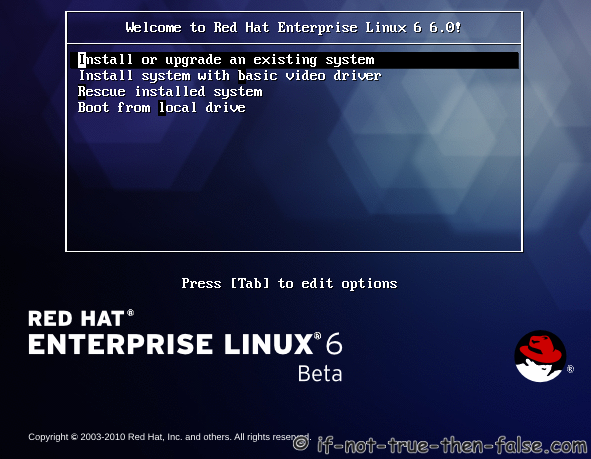
1. Select Install or upgrade an existing system option on Grub Menu

1. Select Install or upgrade an existing system option on Grub Menu

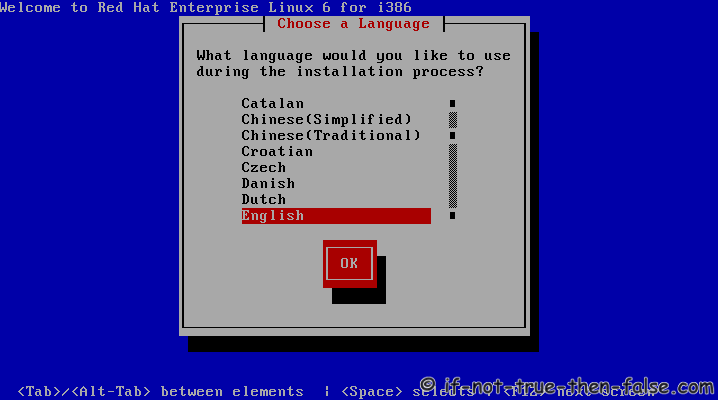
2. Choose a language

2. Choose a language

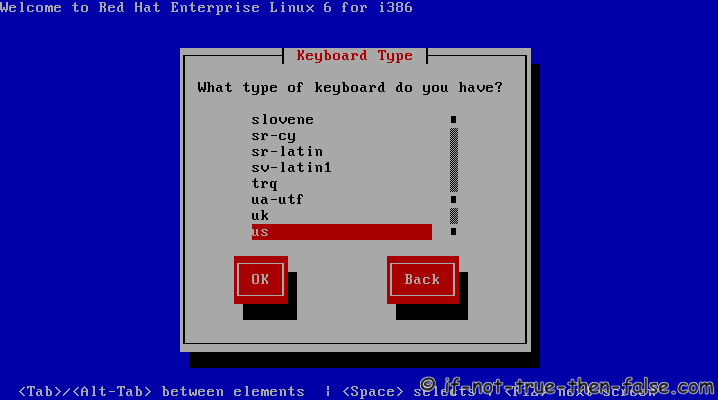
3. Choose a keyboard type

3. Choose a keyboard type

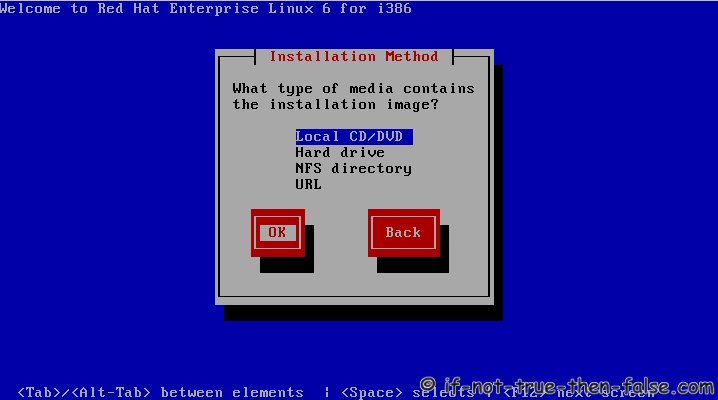
4. Choose a installation media

4. Choose a installation media

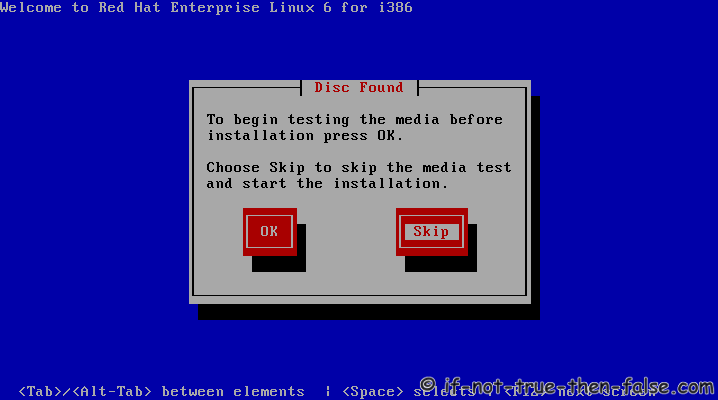
5. Skip DVD media test (or select media test, if you want to test installation media before installation)

5. Skip DVD media test (or select media test, if you want to test installation media before installation)

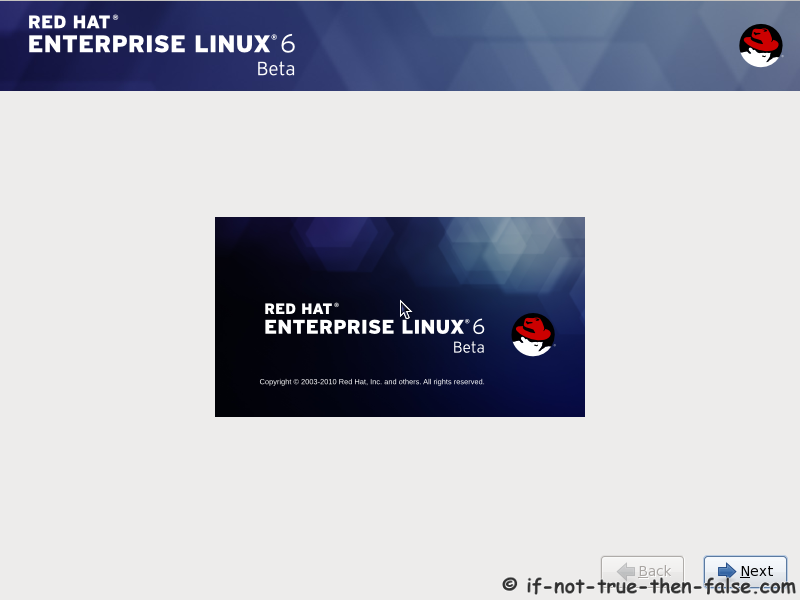
6. Red Hat 6 graphical installer starts, select next

6. Red Hat 6 graphical installer starts, select next

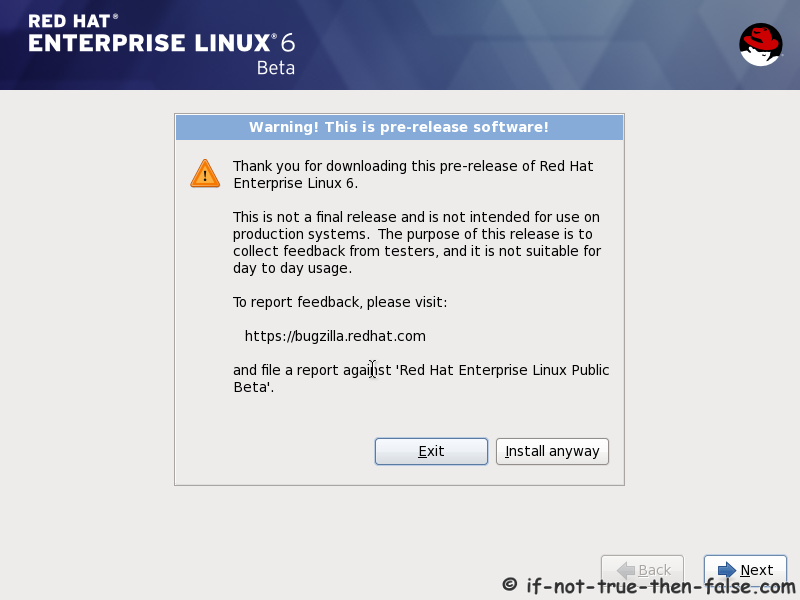
7. Accepct Pre-Release Installation

7. Accepct Pre-Release Installation

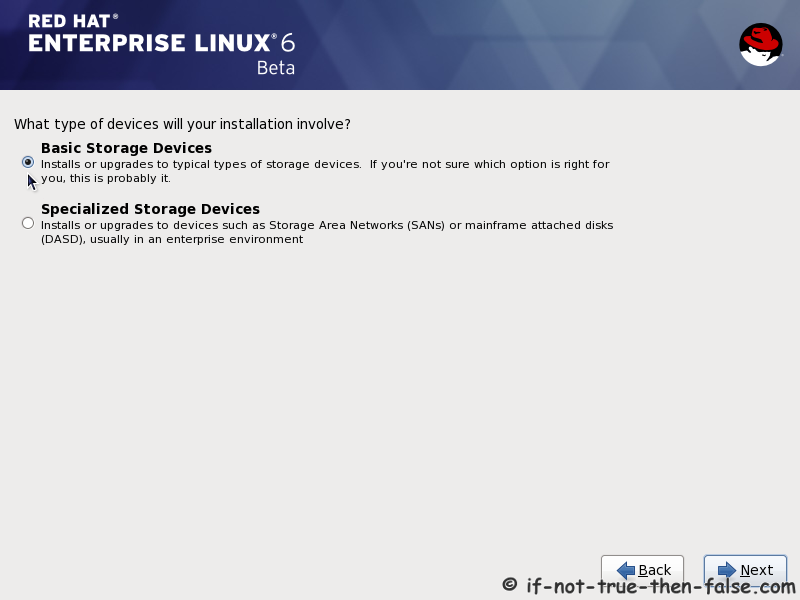
8. Select storage devices

8. Select storage devices

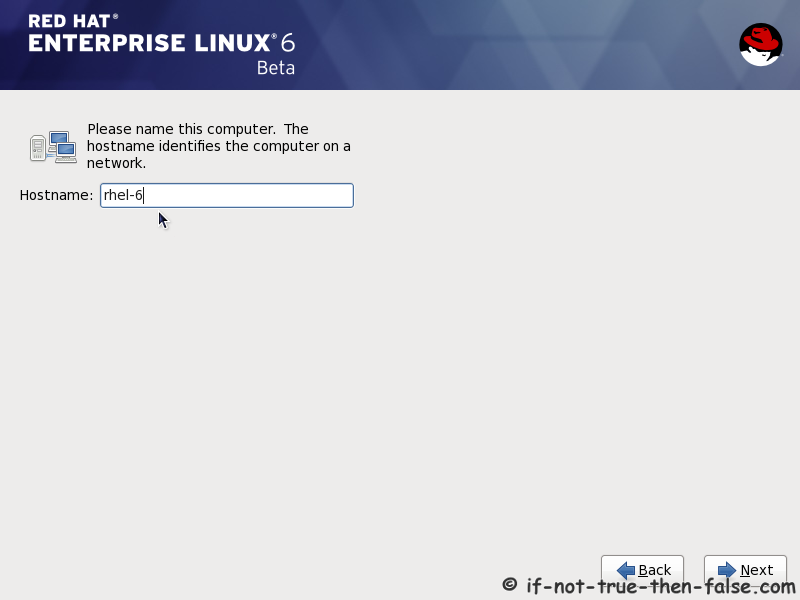
9. Insert computer name

9. Insert computer name

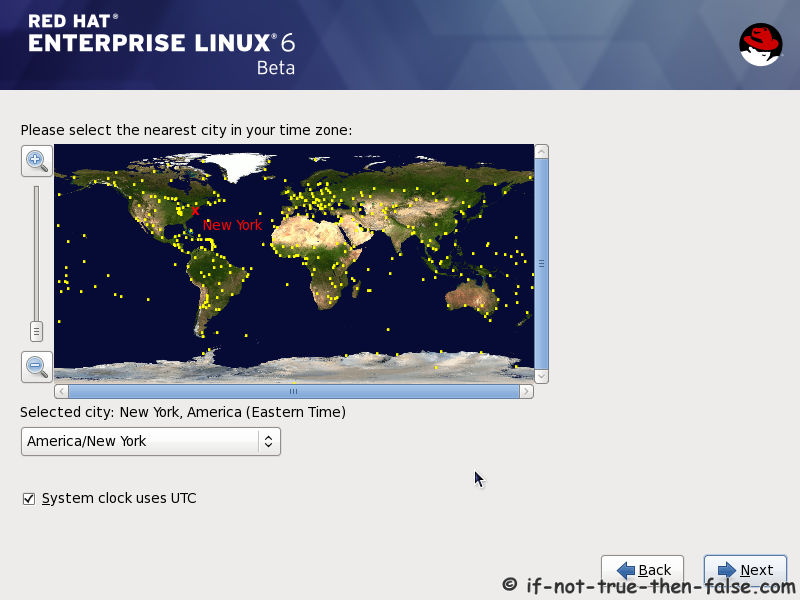
10. Select time zone

10. Select time zone

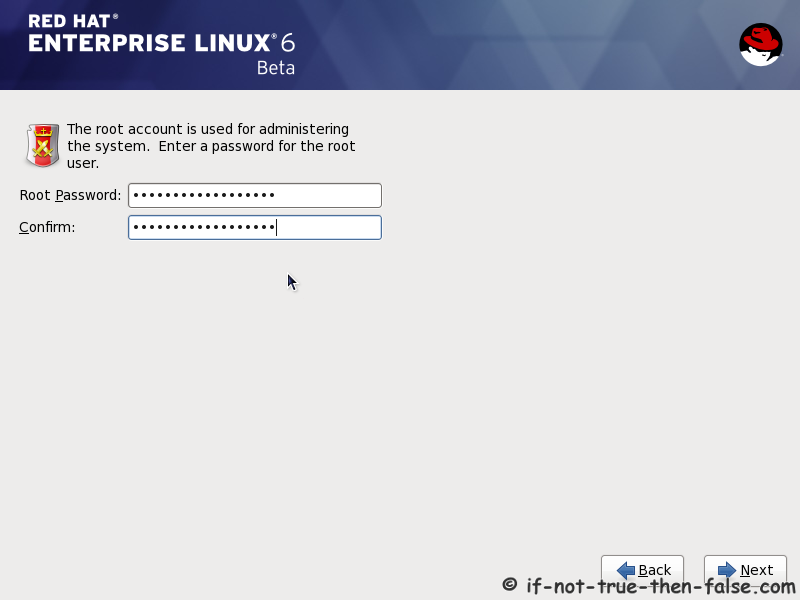
11. Enter a password for root user

11. Enter a password for root user

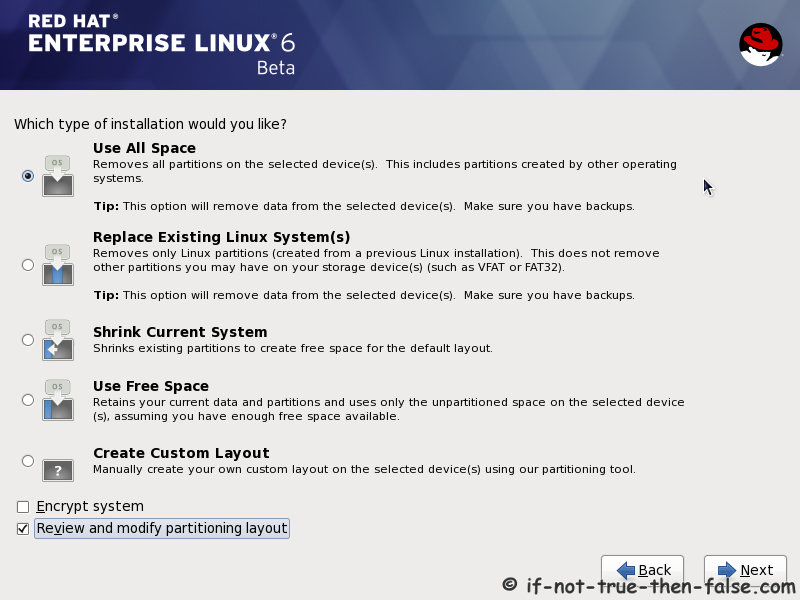
12. Select type of installation

Read every options info carefully. And select encrypting if needed and option to review and modify partition layout.
12. Select type of installation

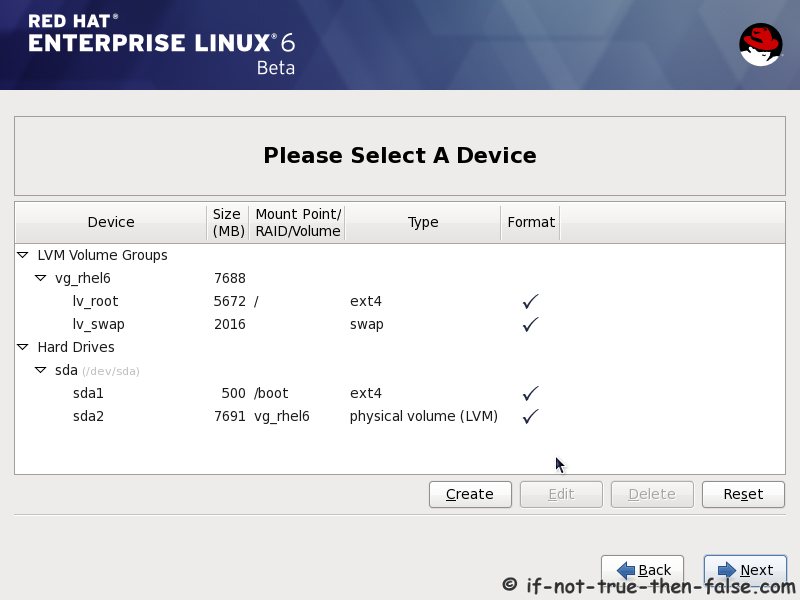
13. Review partition layout

Modify if needed. Default setup with ext4 and LVM looks good for desktop machine.
13. Review partition layout and modify if needed

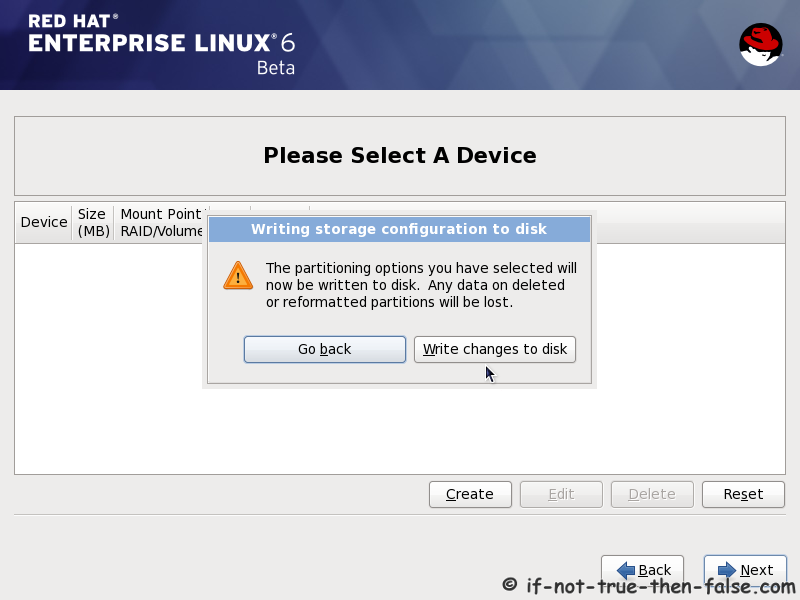
14. Accept write changes to disc

14. Accept write changes to disc

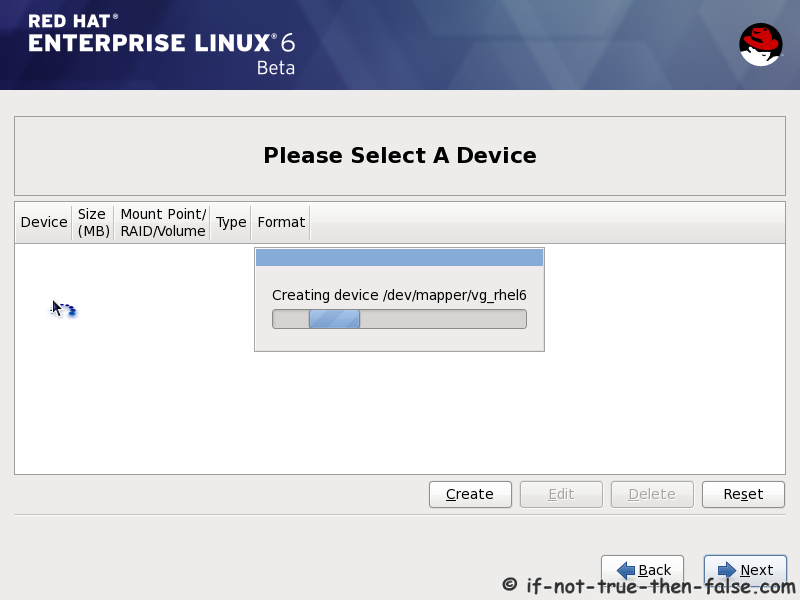
15. Writing changes (creating partitions) to disc

15. Writing changes (creating partitions) to disc

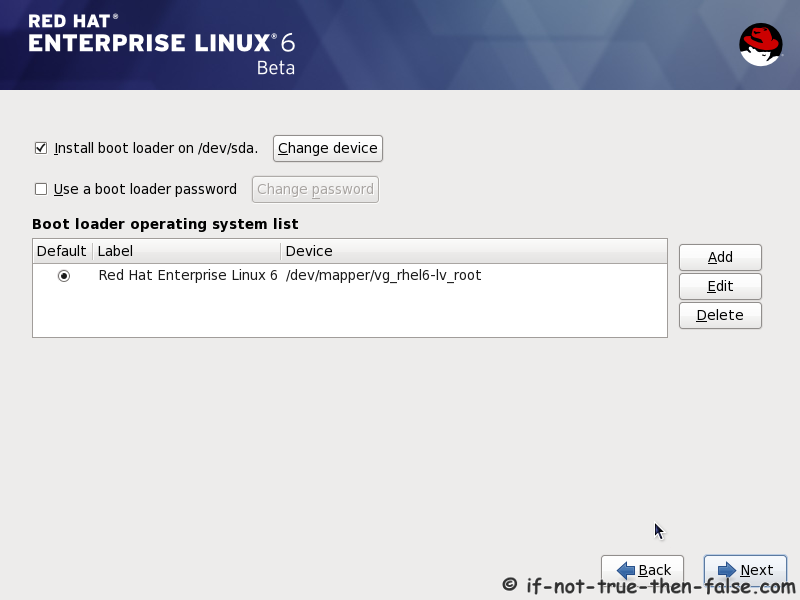
16. Configure boot loader options

Select device to install bootloader and check/create boot loader operating system list.
16. Configure boot loader options

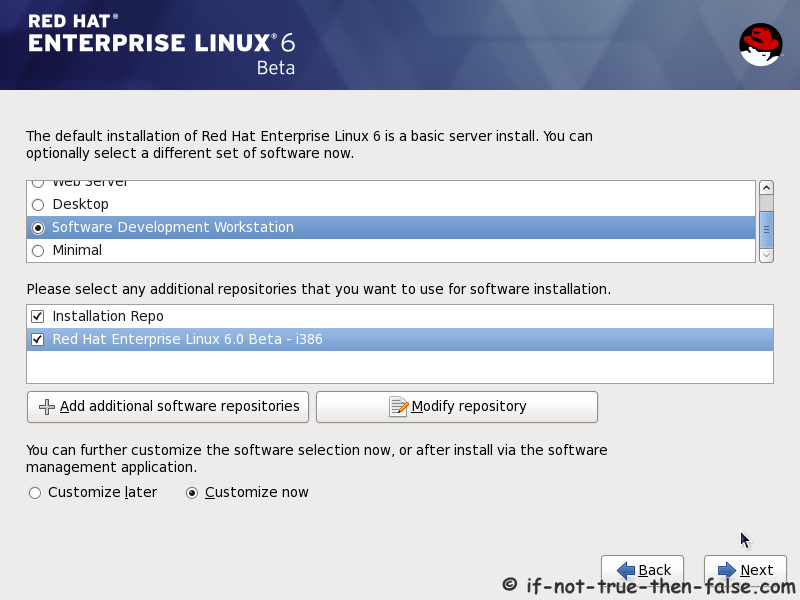
17. Select softwares to install and enable repositories

This case we select Software Development Workstation and enable Red Hat Enterprise Linux 6.0 Beta Repository and select Customize now.
17. Select softwares to install and enable repositories

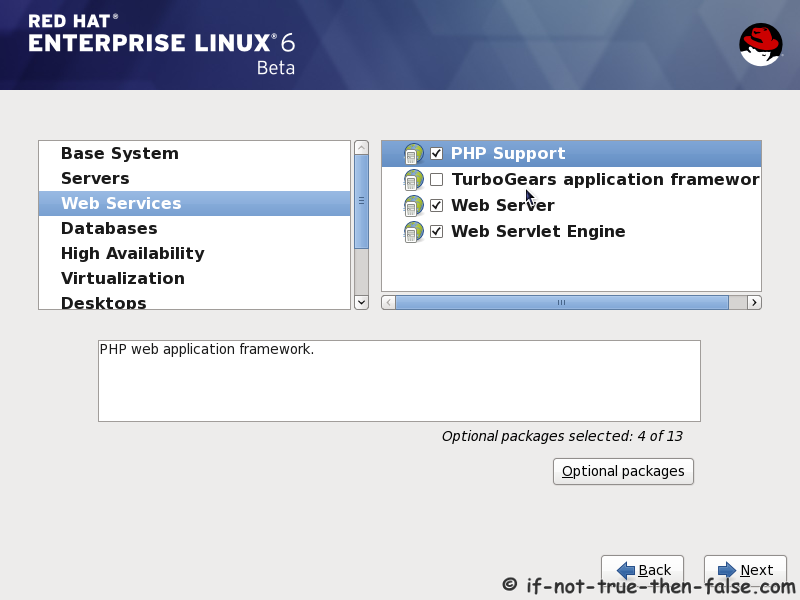
18. Customize package selection

Select PHP and Web Server to installation.
18. Customize package selection - Select PHP and Web Server to installation
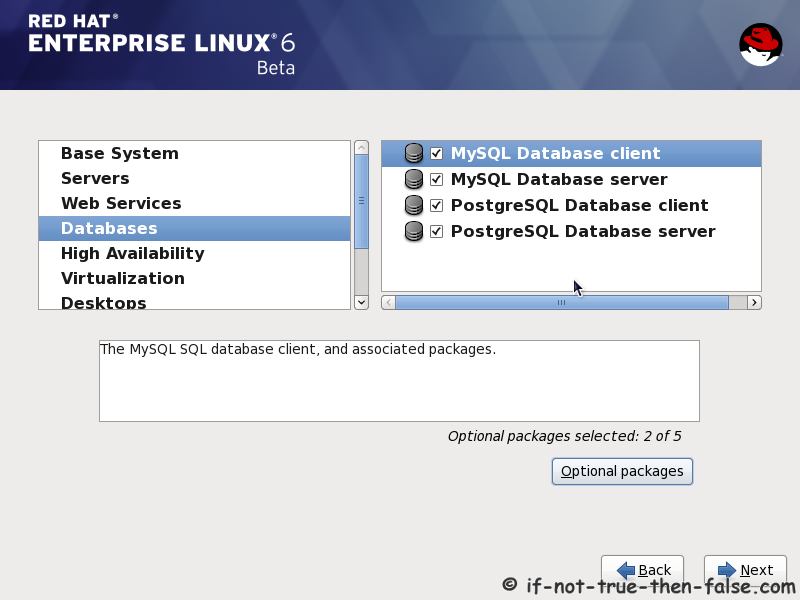
Select MySQL and PostgreSQL Databases.
18. Customize package selection - Select MySQL and PostgreSQL Databases
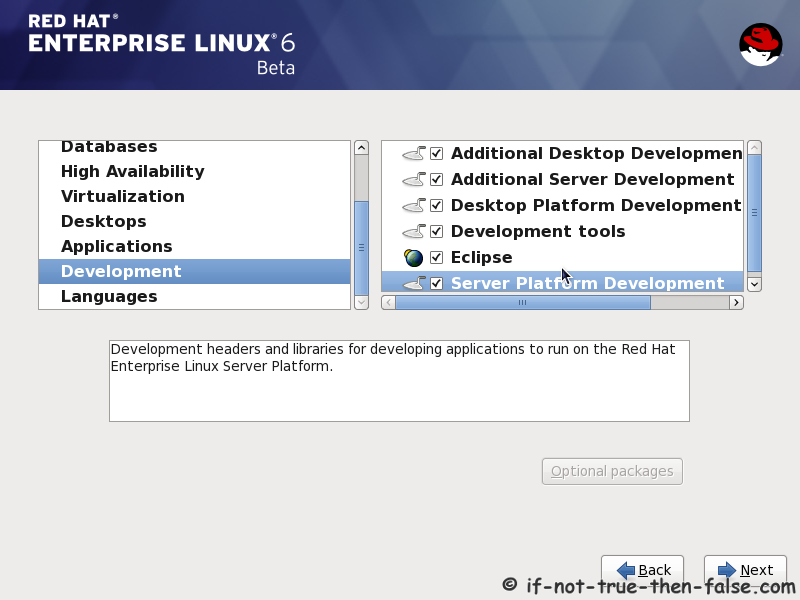
Select set of Development tools like Eclipse IDE.
18. Customize package selection - Select set of Development tools like Eclipse IDE

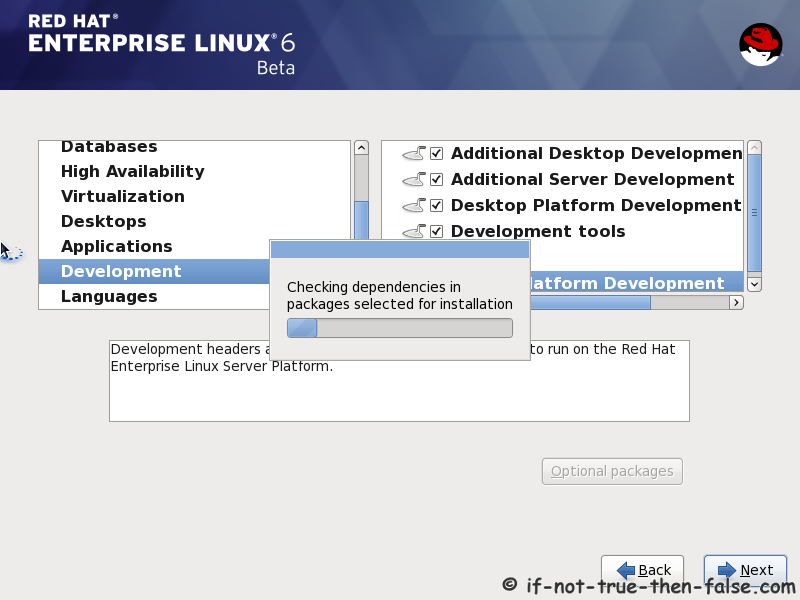
19. Checking dependencies for installation

19. Checking dependencies for installation

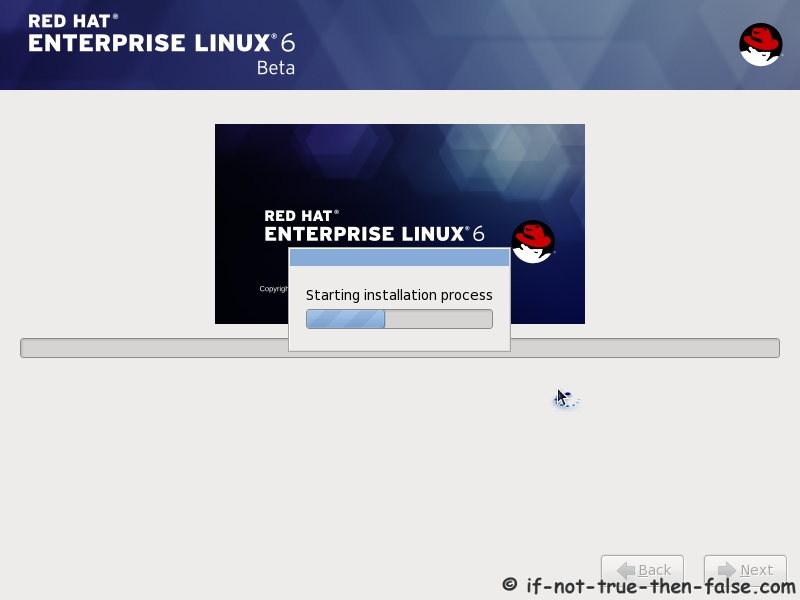
20. Starting installation process

20. Starting installation process

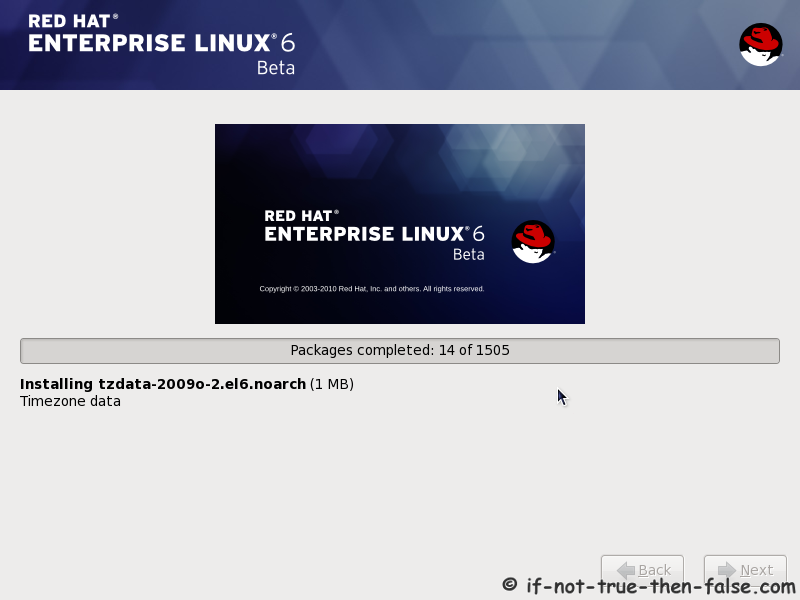
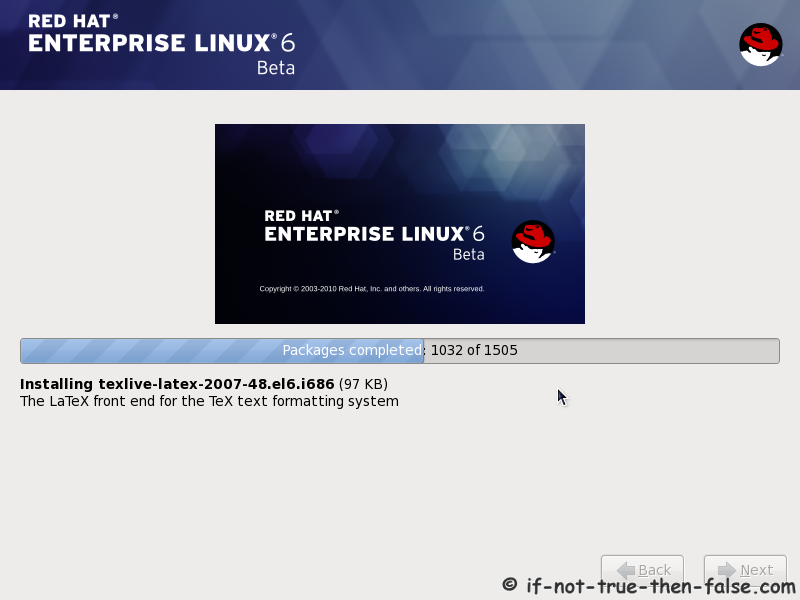
21. Installing packages

21. Installing packages 1
21. Installing packages 2

22. Installation is complete

Click reboot computer and remove installation media.
22. Installation is complete - Click reboot computer and remove installation media

Red Hat 6 RHEL Finishing Installation

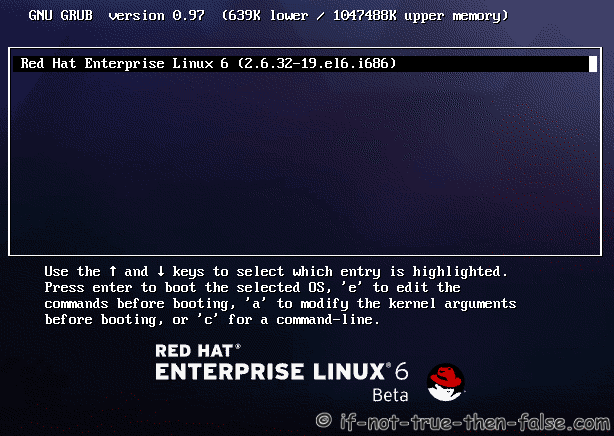
23. Selecting RHEL 6 from grub

23. Selecting RHEL 6 from grub

24. Booting Red Hat 6

24. Booting Red Hat 6

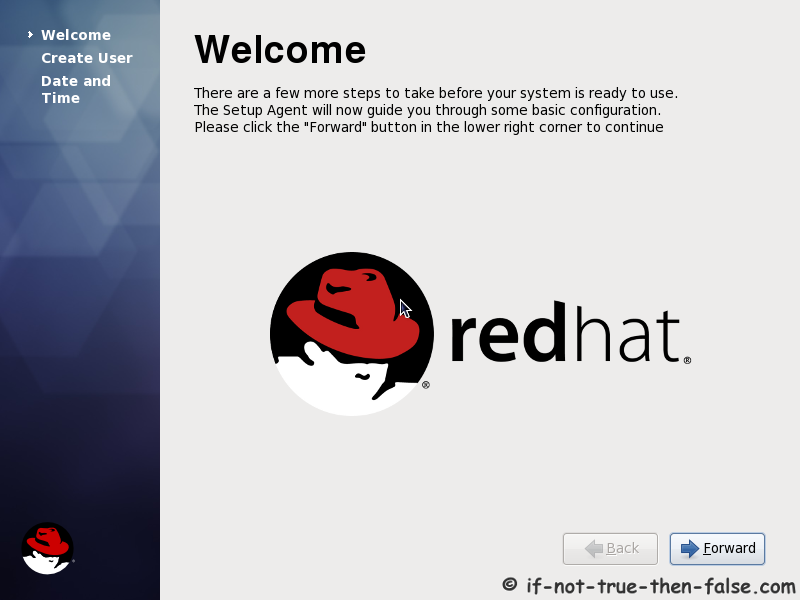
25. Red Hat 6 Welcome screen

25. Red Hat 6 Welcome screen

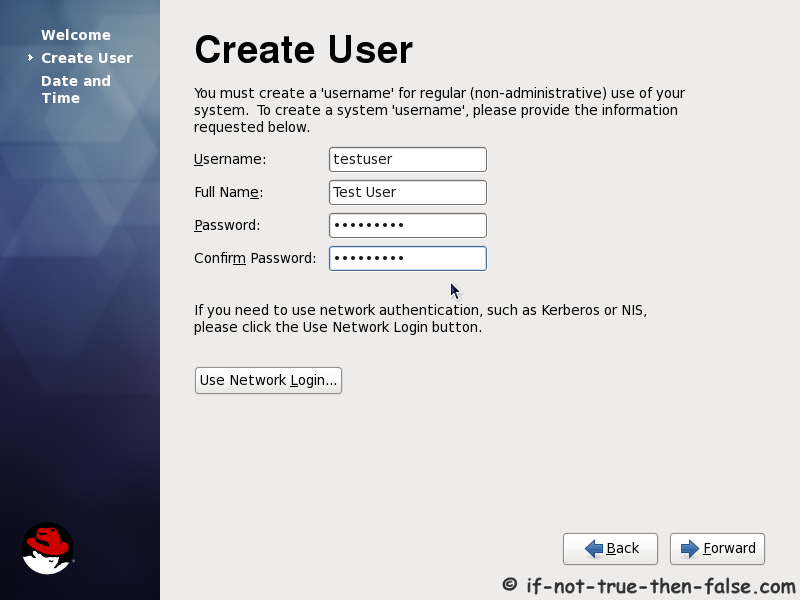
26. Create normal user

26. Create normal user

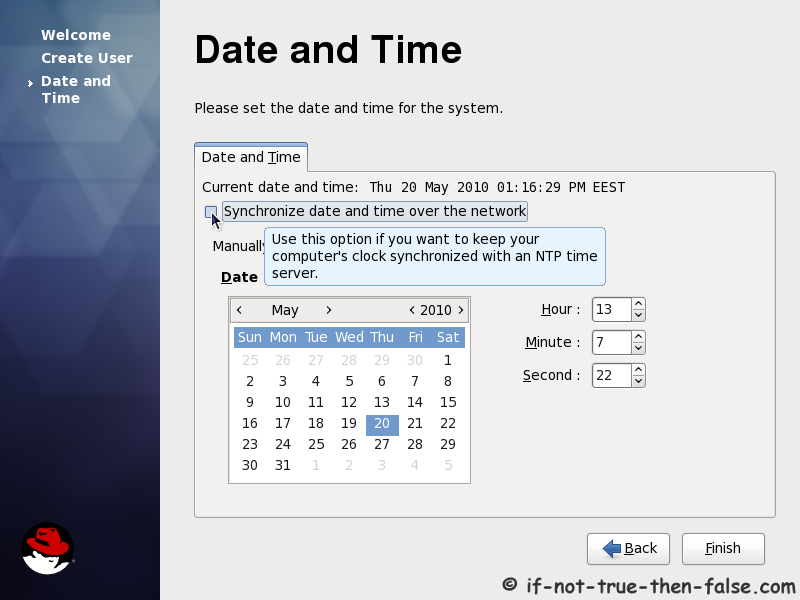
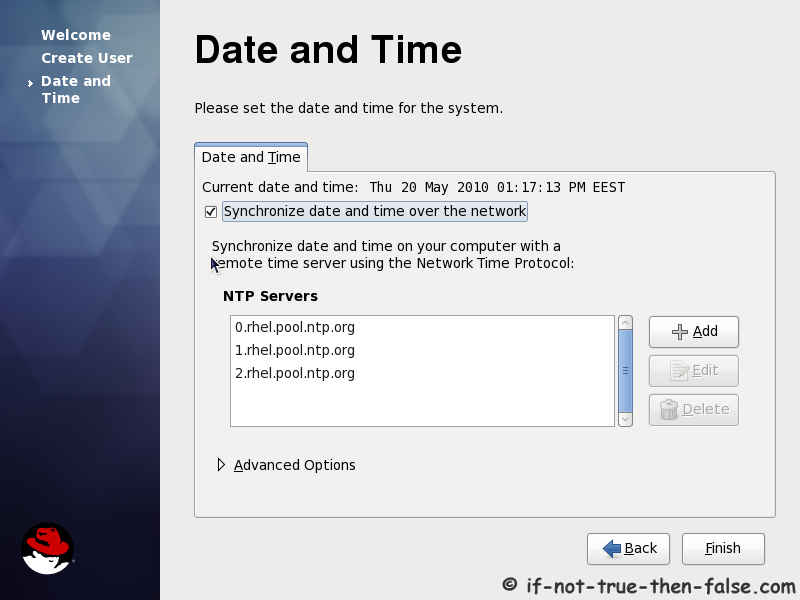
27. Setup date and time and keep up-to-date with NTP

27. Setup date and time
27. Setup date and time and keep up-to-date with NTP

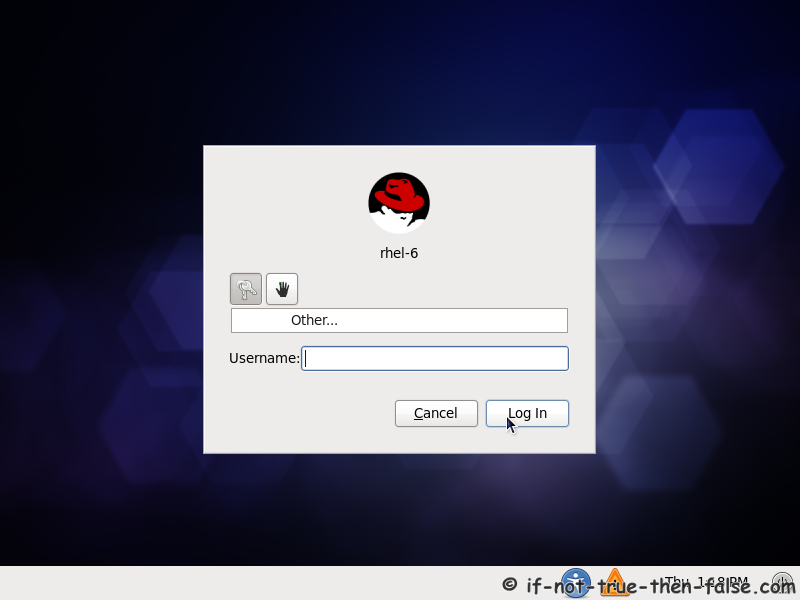
28. Login Red Hat 6 Gnome Desktop

28. Login Red Hat 6 Gnome Desktop

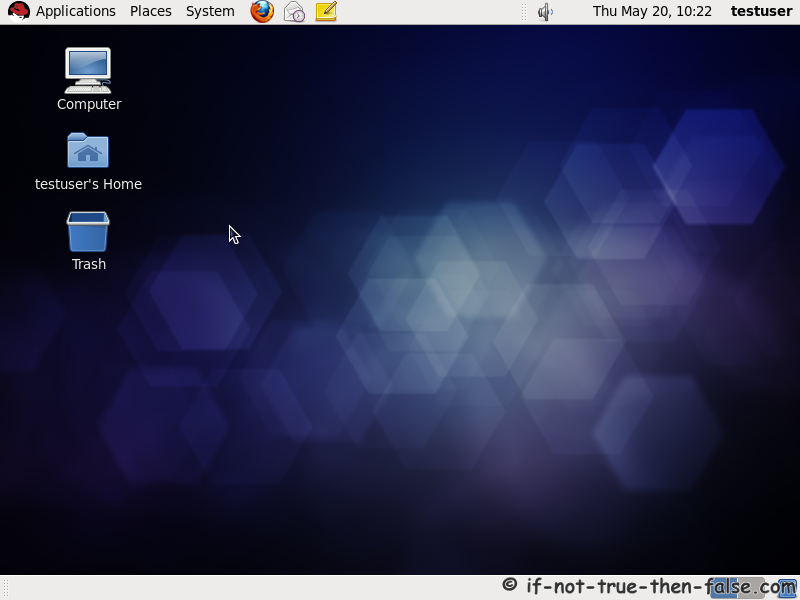
29. Red Hat (RHEL) 6 Gnome Desktop, empty and default look

29. Red Hat (RHEL) 6 Gnome Desktop, empty and default look

Sunday, September 8, 2013

Adding and viewing IP addresses on CentOS servers

To add newly assigned IP addresses from SSH, follow this procedure:

(Please follow the steps given below only on a Centos / Fedora.)
  • Login to your server with SSH as root.
  • Go to the /etc/sysconfig/network-scripts directory.
cd  /etc/sysconfig/network-scripts/
  • Verify which interface you will use to add IP addresses. Typically, this will be eth0 for public IP addresses.
/sbin/ifconfig
This will produce output similar to the following:
520.jpeg
  • Make a copy of ifcfg-eth0 for each IP you wish to add and name them as ifcfg-eth0:0, ifcfg-eth0:1 etc.
cp ifcfg-eth0 ifcfg-eth0:0 
cp ifcfg-eth0 ifcfg-eth0:1 
cp ifcfg-eth0 ifcfg-eth0:2 
cp ifcfg-eth0 ifcfg-eth0:3 
cp ifcfg-eth0 ifcfg-eth0:4
  • Open each of them and change the fields DEVICE, .IPADDR and NETMASK accordingly.
A sample entry would look like this:
DEVICE=eth0:0
BOOTPROTO=static
IPADDR=34.123.111.21
NETMASK=255.255.255.0
ONBOOT=yes
  • Restart the network:
/etc/init.d/network restart
To verify what are the IP addresses assigned to your server, please use the following command:

/sbin/ifconfig

Adding multiple IP addresses at once:

Navigate to the following folder:
/etc/sysconfig/network-scripts/
In this folder, create a file named "ifcfg-ethX-range", without the quotes, and replacing X with the ID of the physical interface. For example, if you were using eth0, you would use the following file name:
ifcfg-eth0-range
In the file, enter the following information, modifying the entries as necessary.
IPADDR_START=10.0.0.1
IPADDR_END=10.0.0.100
CLONENUM_START=0
NETMASK=255.255.255.0
A real life example might resemble this:
521.jpeg
IPADDR_START means the start of the IP address range
IPADDR_END means the end of the IP address range
CLONENUM_START means the number assigned to the first virtual interface, for example eth0:0 or eth0:1, or eth0:8 as in the above screen capture
NETMASK is 255.255.255.255 for all secondary IP addresses to allow you to use the network and broadcast addresses on your server
After you have created the file, save and quit, and then restart the network service:
/etc/init.d/network restart